DCP Player
A macOS DCP player created by João Faria. Review Digital Cinema Packages with independent picture and sound outputs, color conversion, subtitles and multichannel audio monitoring.
Screenshots
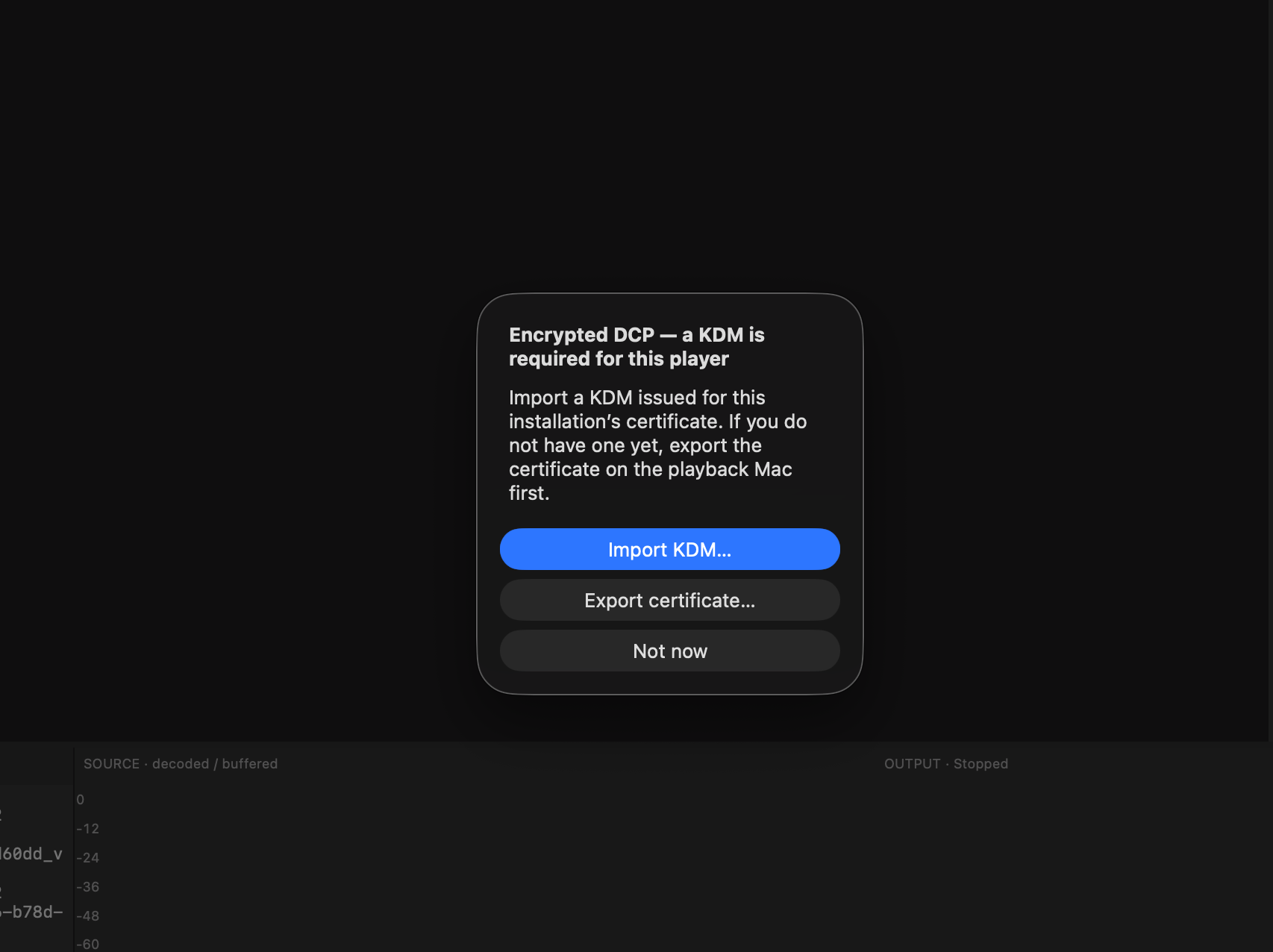
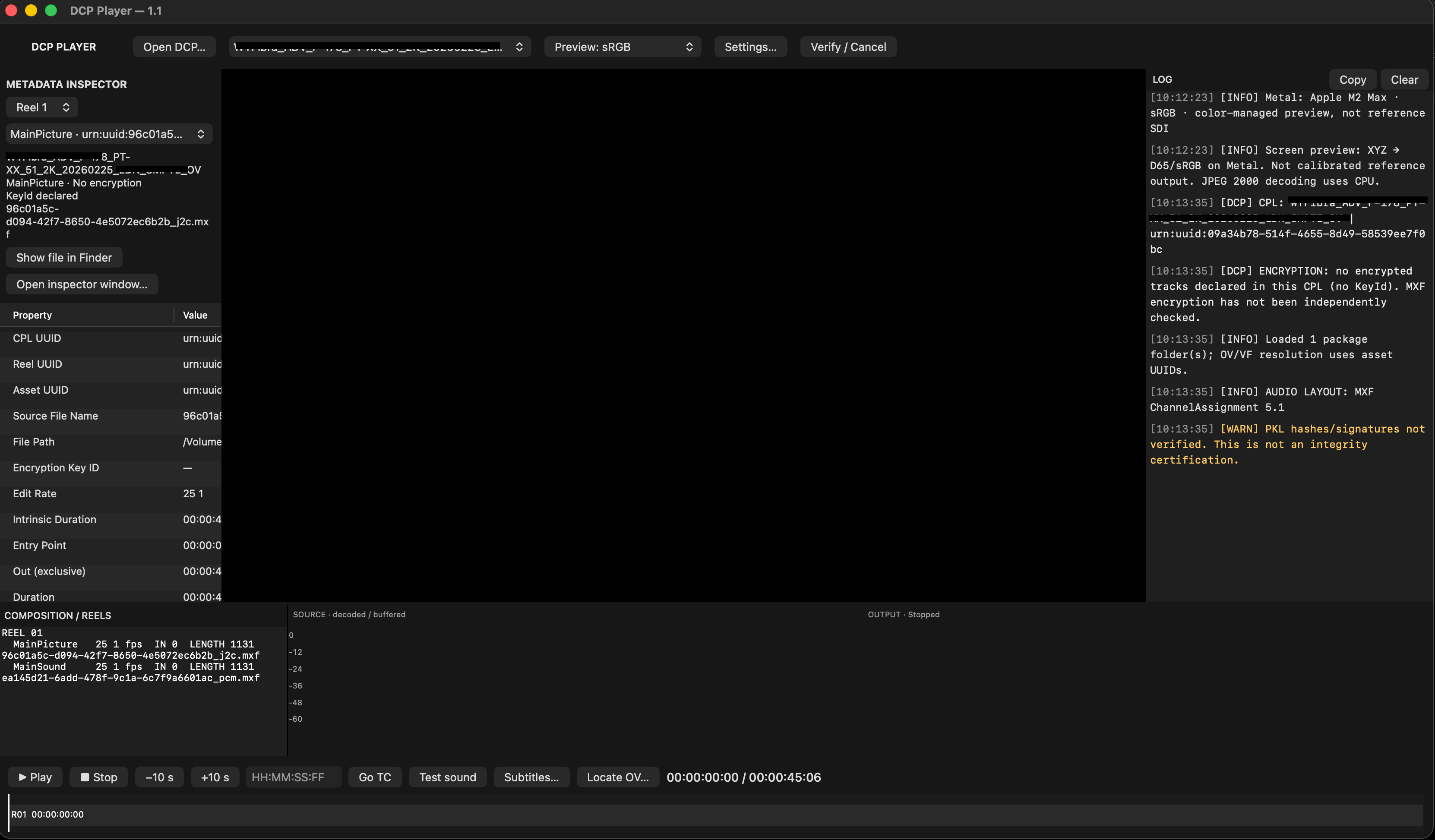
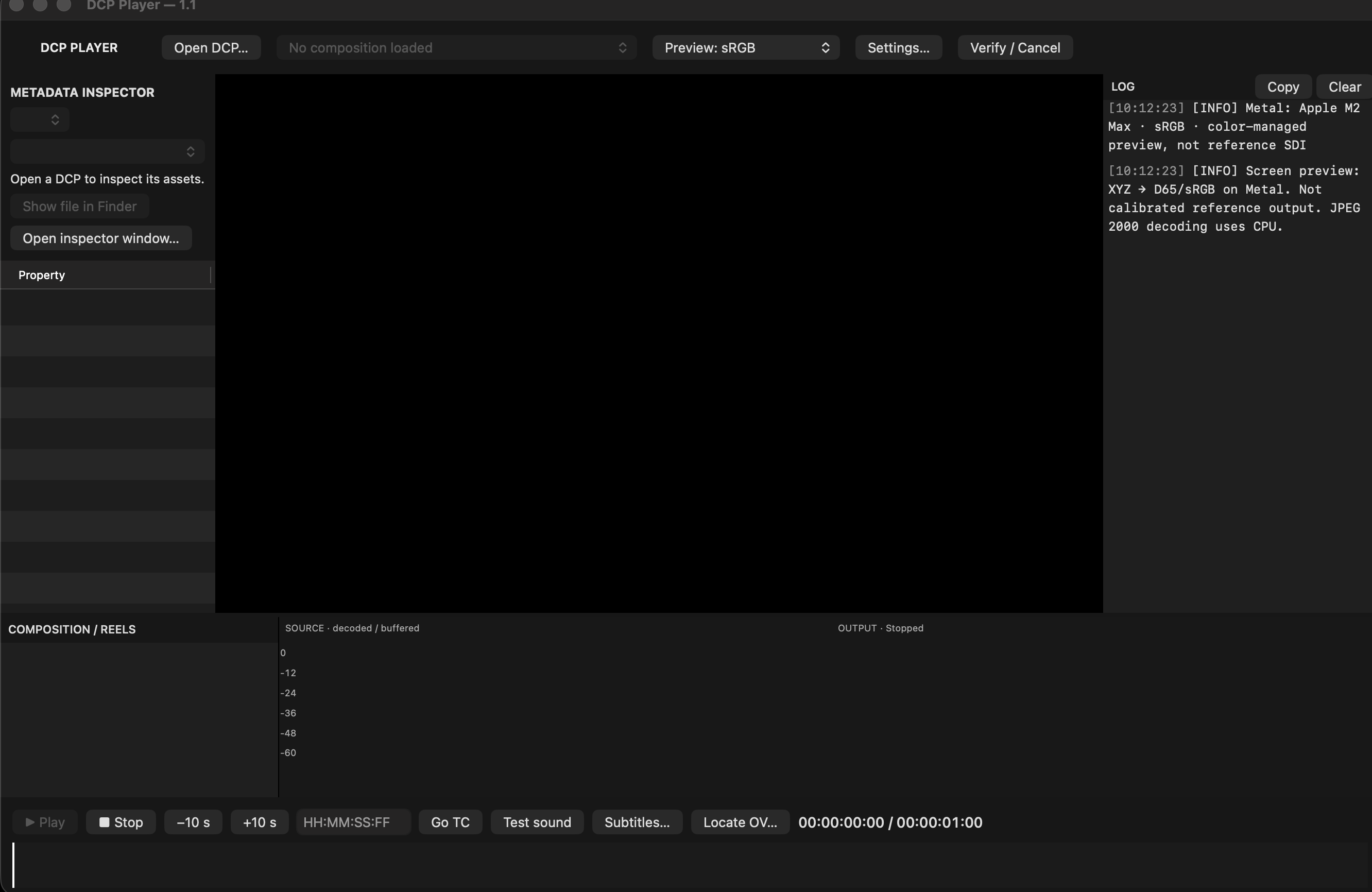
Downloads
I built this to use on my own jobs, and I use it daily. I'm sharing it as it is — you're free to use it however works for you.
Did you like this app? If it saved you time or money, you can buy me a coffee.
Buy me a coffeeFeatures
- DCP playback — open supported unencrypted DCPs and encrypted compositions with a valid KDM.
- Multiple compositions — select the CPL you want to review.
- OV/VF support — open a Version File and locate its required Original Version when prompted.
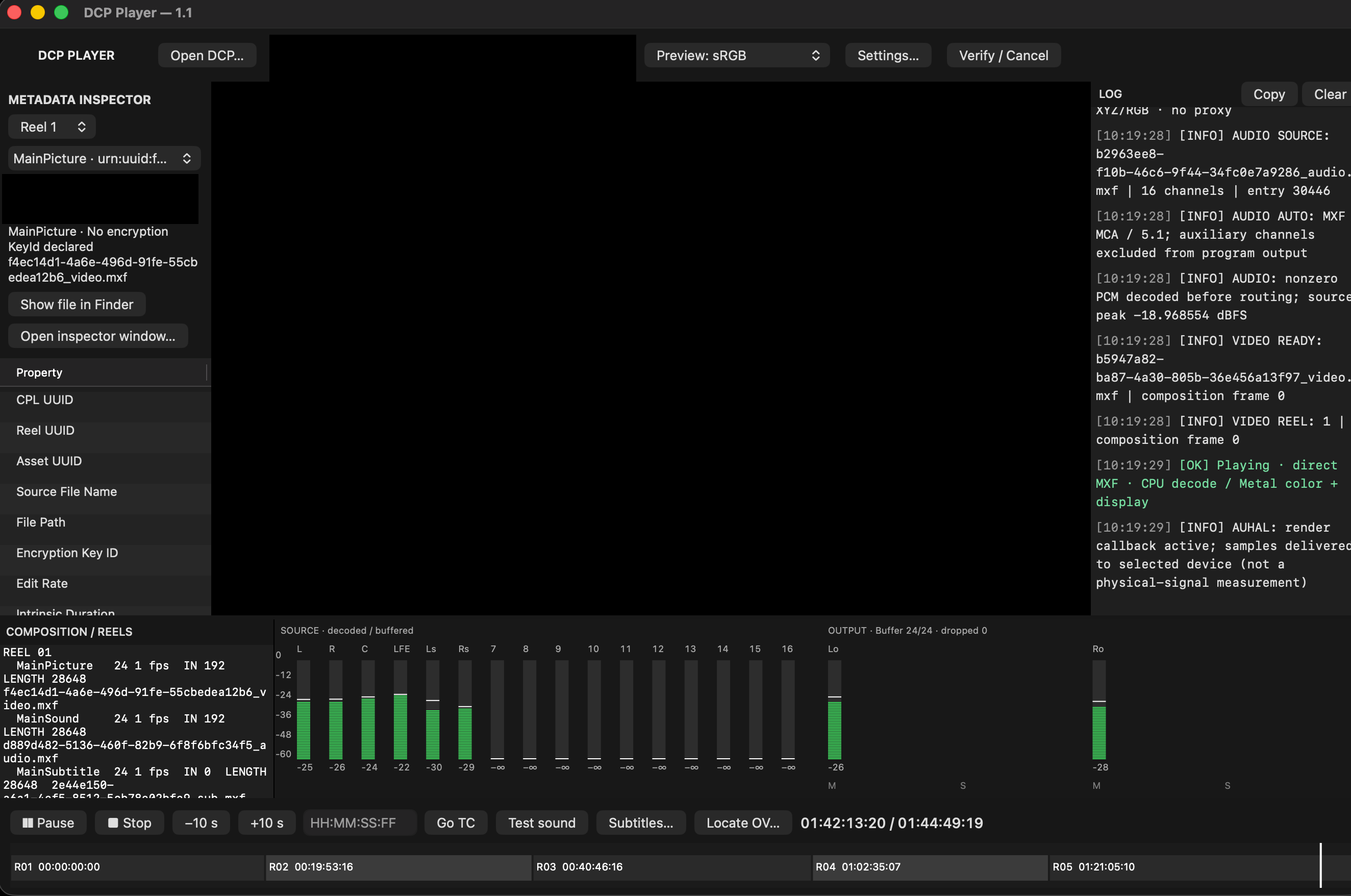
- Playback controls — play/pause with Space, seek using the timeline or enter a timecode.
- Reel markers — see reel boundaries on the timeline.
- Subtitles — display supported subtitle tracks associated with the selected composition.
- Color management — select sRGB, Rec.709 or P3-DCI for the screen preview, with separate external-output settings.
- External video — AJA and Blackmagic output support, with RGB 10-bit HD output and selectable SDI range, subject to hardware compatibility.
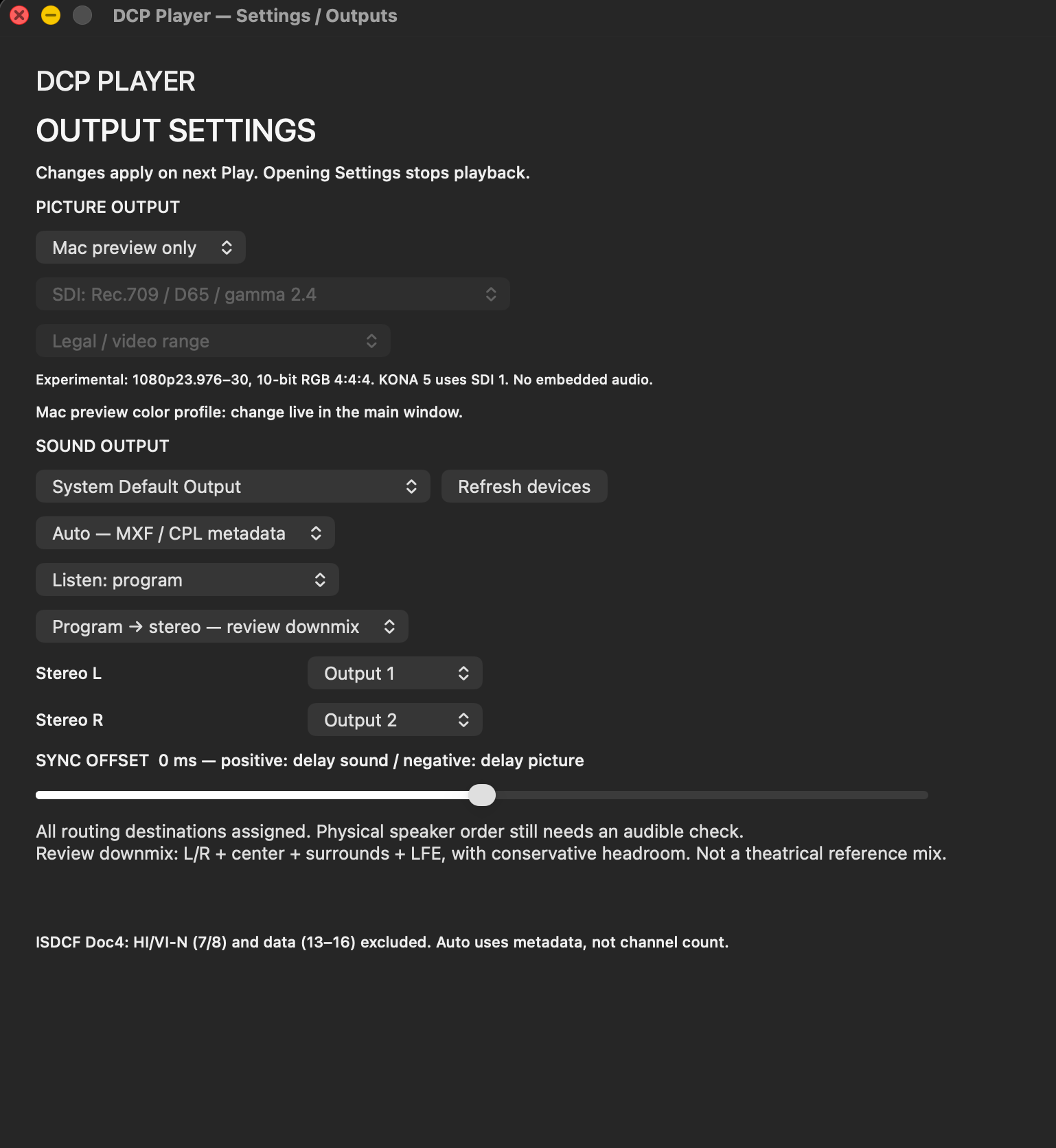
- Independent audio output — send video through an external card while playing audio through a separate Core Audio device.
- Multichannel audio — stereo, 5.1 and 7.1 layouts, channel assignments, stereo review downmix and adjustable sync delay.
- Automatic audio interpretation — uses available metadata, with ISDCF naming and Wild Track fallbacks where applicable.
- Audio monitoring — channel meters, peak indicators, mute/solo controls and a physical-output sound test.
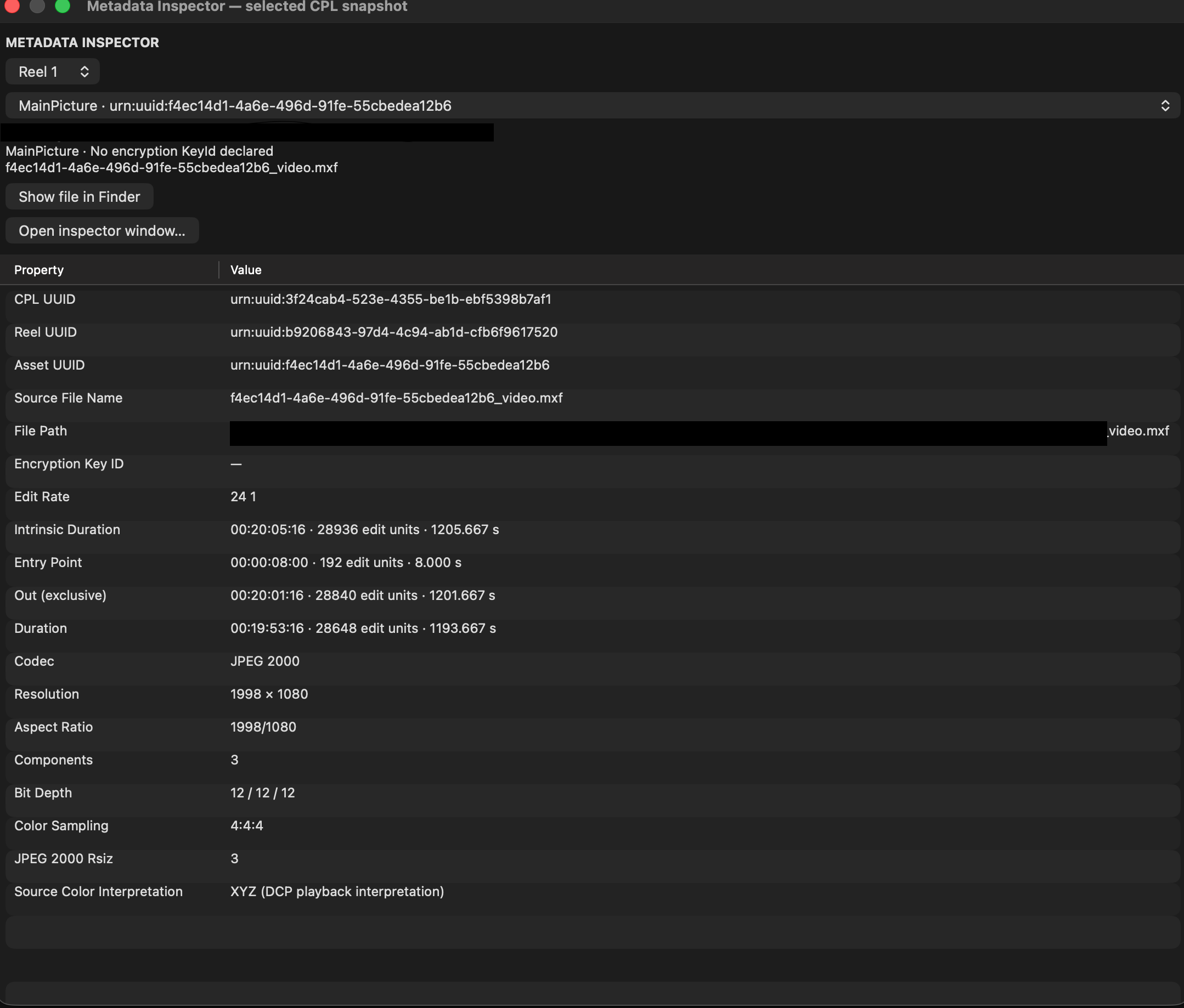
- Metadata Inspector — inspect individual reels and tracks, including UUIDs, durations, encryption information and available picture/audio properties.
- KDM tools — export the installation's public recipient certificate and import KDMs.
- Package verification — check supported PKL asset hashes.
- Monochrome interface — black-and-white styling with functional colors for meters and warnings.
Install the macOS ARM64 application
Choose this if you want to use the player without compiling it.
- Check your Mac — you need an Apple Silicon Mac, M1 or newer. This download does not support Intel Macs. For external video output, install the appropriate AJA or Blackmagic driver.
- Download the application — extract the ZIP and move DCP Player.app into your Applications folder.
- Install Homebrew — if not already installed, follow the instructions at brew.sh. Use the native Apple Silicon installation, at
/opt/homebrew. - Install the required dependencies — open Terminal and run:
/opt/homebrew/bin/brew install ffmpeg openssl@3 libxmlsec1 pythonWait until installation finishes.
- Open DCP Player from Applications. This release is not Developer ID signed and notarized. If macOS blocks it, review the message under System Settings → Privacy & Security and approve it only if you obtained the download from this site. Xcode is not required to run the compiled application.
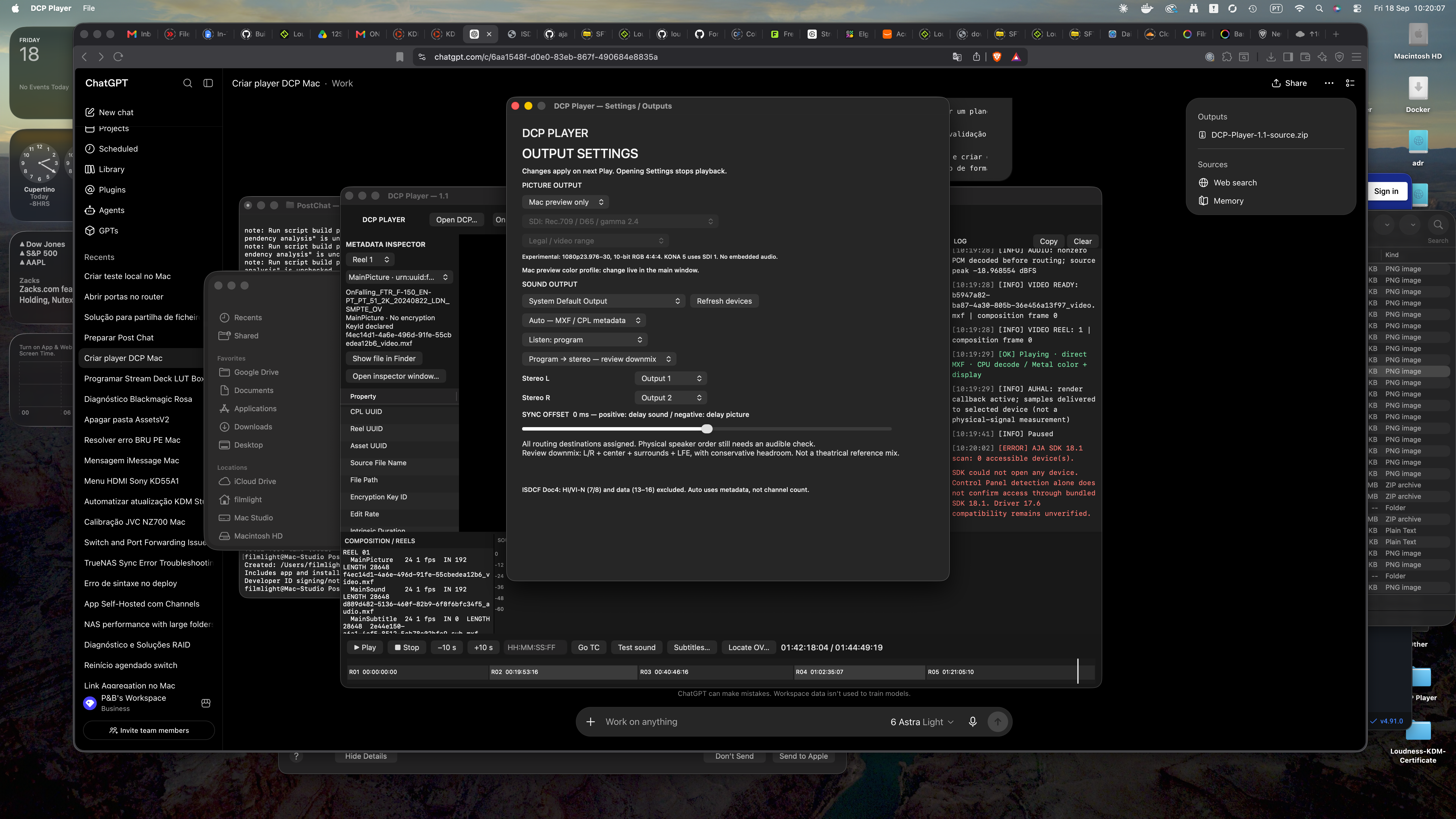
- Configure your outputs — open Settings and select picture output (Mac display or supported external hardware), audio output (Core Audio device), audio layout and physical channel assignments, audio delay if required, and external color profile / SDI range where applicable.
- Open a DCP — click Open DCP, select the package folder and choose the intended CPL. For a VF, select the required OV folder when prompted. Press Play or Space to start playback. For encrypted content, export the player certificate on the playback Mac, request a KDM for that certificate and the selected CPL, then import it.
Build and install from source
Choose this if you want to inspect, modify or compile the application.
- Download the source — extract it into Downloads. The resulting folder should be
~/Downloads/DCPPlayer-1.1. - Install Xcode — install the full Xcode application and open it once to complete its initial setup. Then in Terminal, select its developer tools:
sudo xcode-select -s /Applications/Xcode.app/Contents/DeveloperEnter your Mac password if requested.
- Install Homebrew and dependencies — install native Apple Silicon Homebrew from brew.sh, then run:
/opt/homebrew/bin/brew install cmake ffmpeg openssl@3 libxmlsec1 python
- Install the Metal Toolchain if required — if Xcode reports it's missing, run:
xcodebuild -downloadComponent MetalToolchain
- Compile the application — run:
bash "$HOME/Downloads/DCPPlayer-1.1/Build.command"The script configures an ARM64 build, compiles the application, runs the tests and opens the player after successful completion.
- Install your compiled app — it will be located at
~/Downloads/DCPPlayer-1.1/build-arm64/Release/DCP Player.app. Move it into Applications. - Create a portable application ZIP — to package your build with installation instructions, run:
bash "$HOME/Downloads/DCPPlayer-1.1/Package-For-Mac.command"This creates
DCP-Player-1.1-macOS-arm64.zipon your Desktop. The destination Mac still needs the runtime dependencies described above — packaging does not perform Developer ID signing or notarization.
Updating
Quit DCP Player before replacing the application. Keep its local Application Support data to preserve the installation's recipient identity and saved KDMs.
Contact
Created by João Faria — joaofariapost.com
Questions or feedback? hello@joaofariapost.com