Post Chat
A self-hosted collaboration app for small teams, with project channels, direct messages, tasks and file sharing. Your own computer hosts it and stores the data.
Screenshots
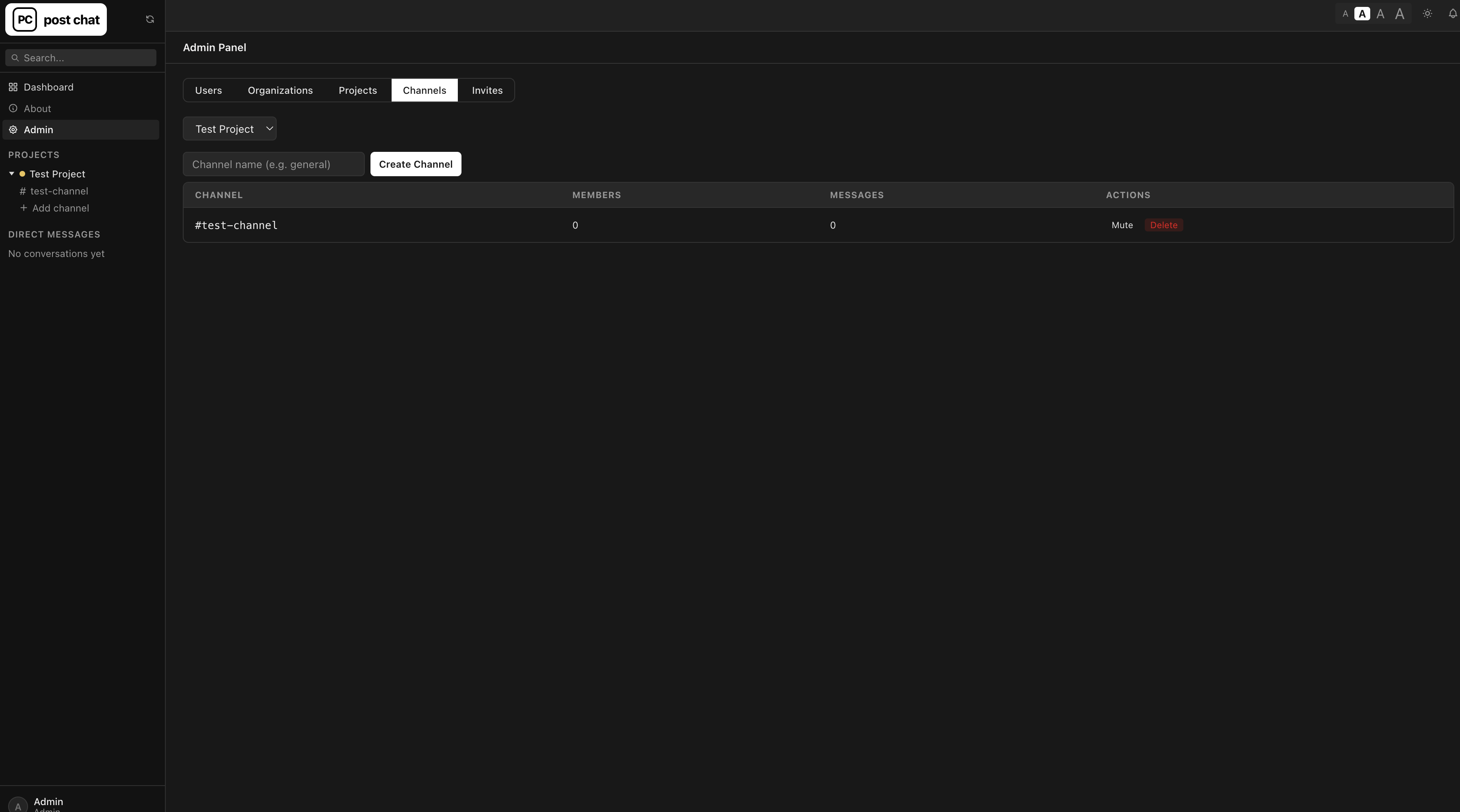
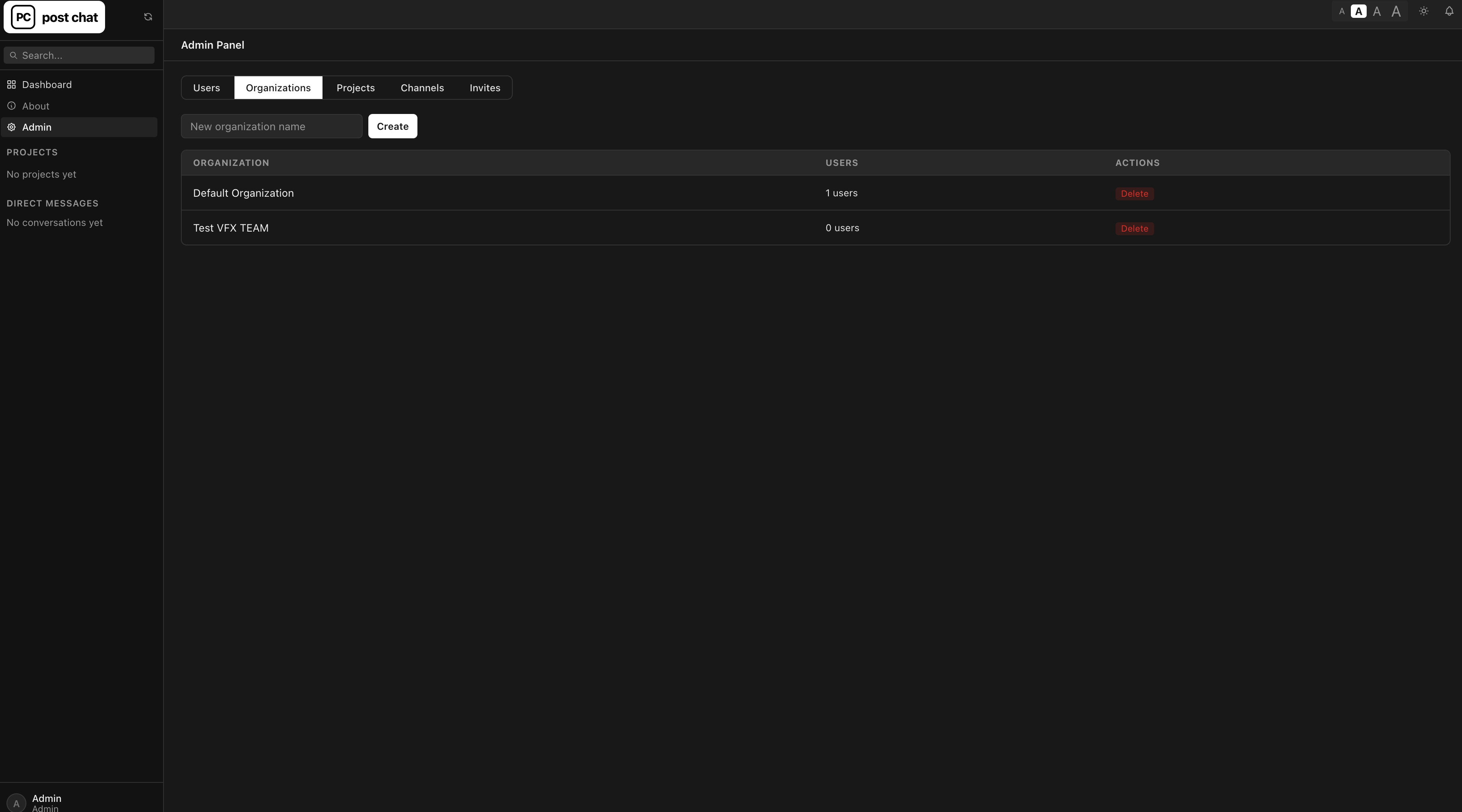
Downloads
I built this to use with my own team, and I use it daily. I'm sharing it as it is — you're free to use it however works for you.
Did you like this app? If it saved you time or money, you can buy me a coffee.
Buy me a coffeeWhat Post Chat does
Self-hosted team communication and project management for creative teams. Post Chat is a private collaboration platform designed for post-production studios, production companies and small creative teams — real-time communication, project organization, task management and file sharing in one interface.
It runs on your own Windows or macOS computer, giving you control over your conversations, projects, uploaded files and database. Team members connect from Mac, Windows, phones or tablets through a browser, without installing the server application on every device.
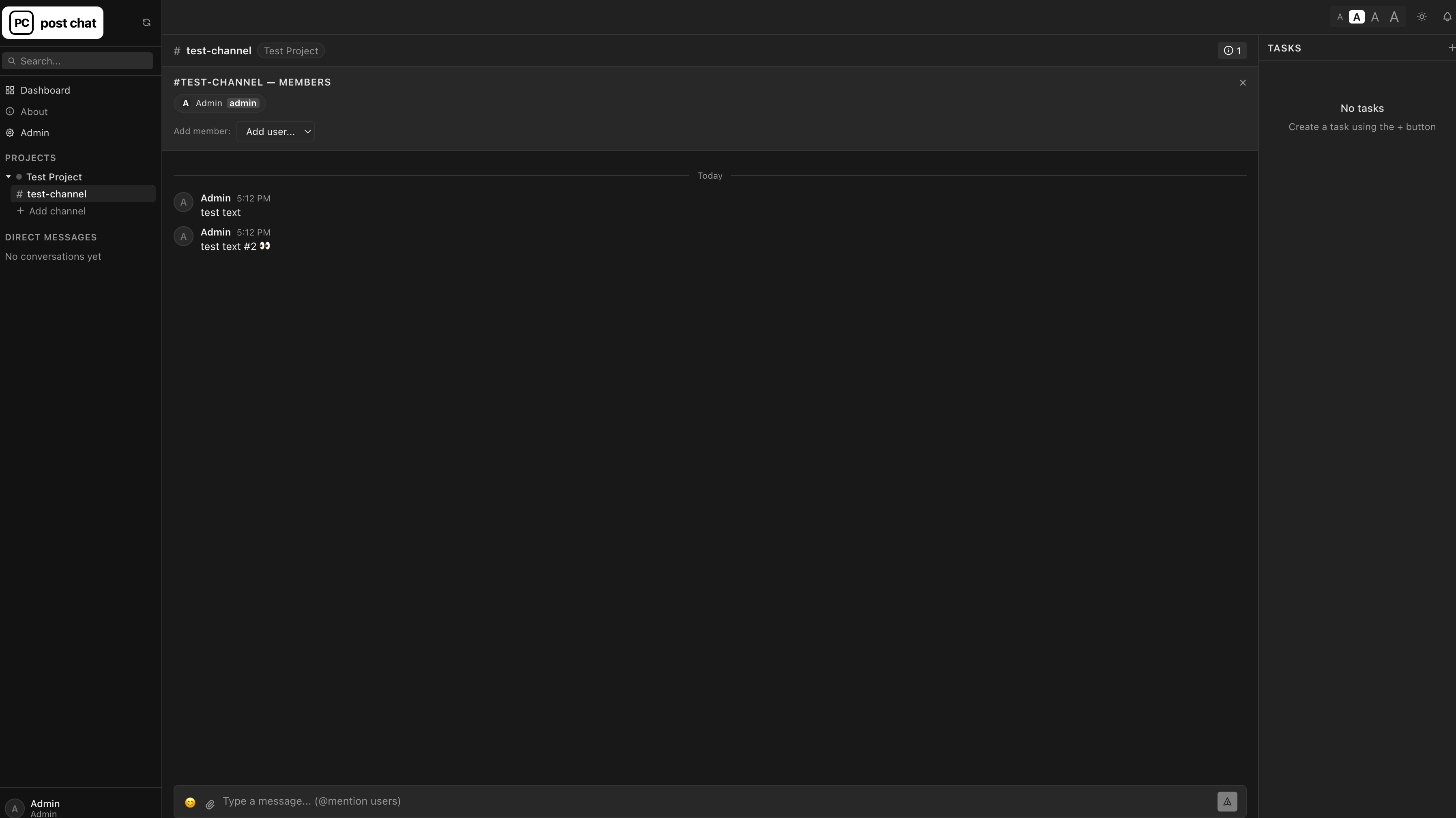
- Real-time team chat — project-based channels using Socket.IO real-time messaging.
- Project-based organization — separate projects and channels to keep conversations, files and tasks organized.
- Direct messages — private messages with full conversation history.
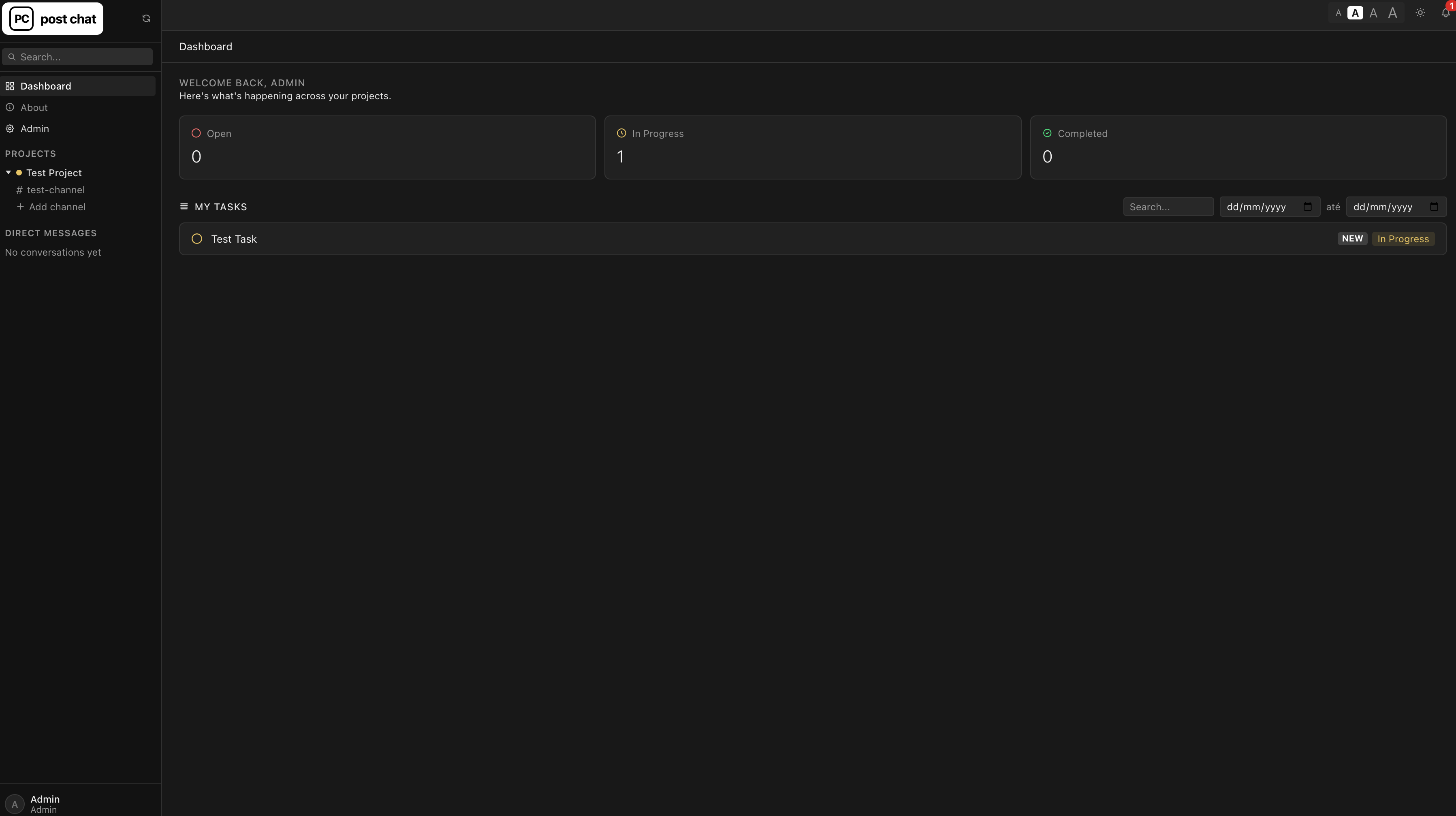
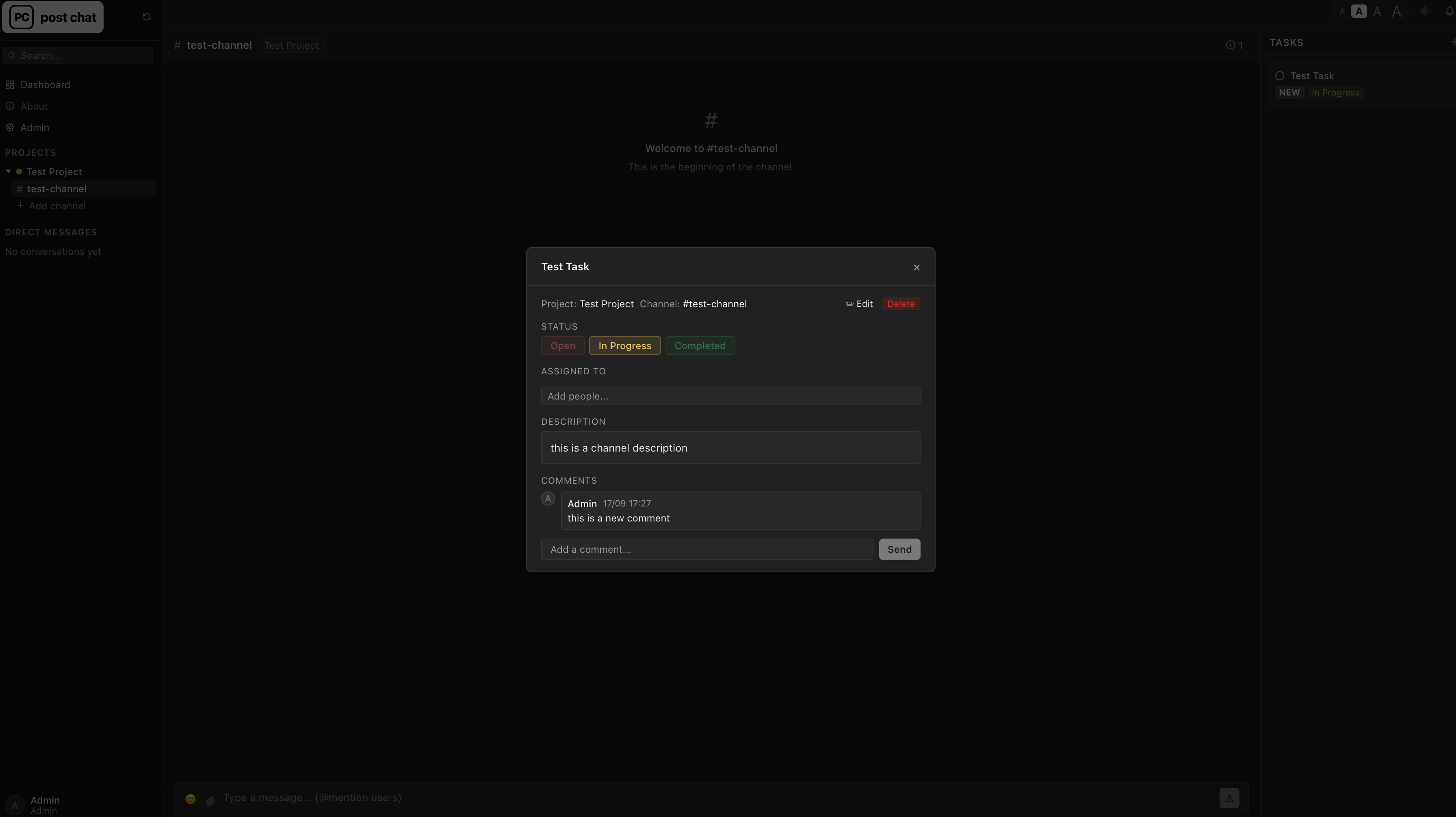
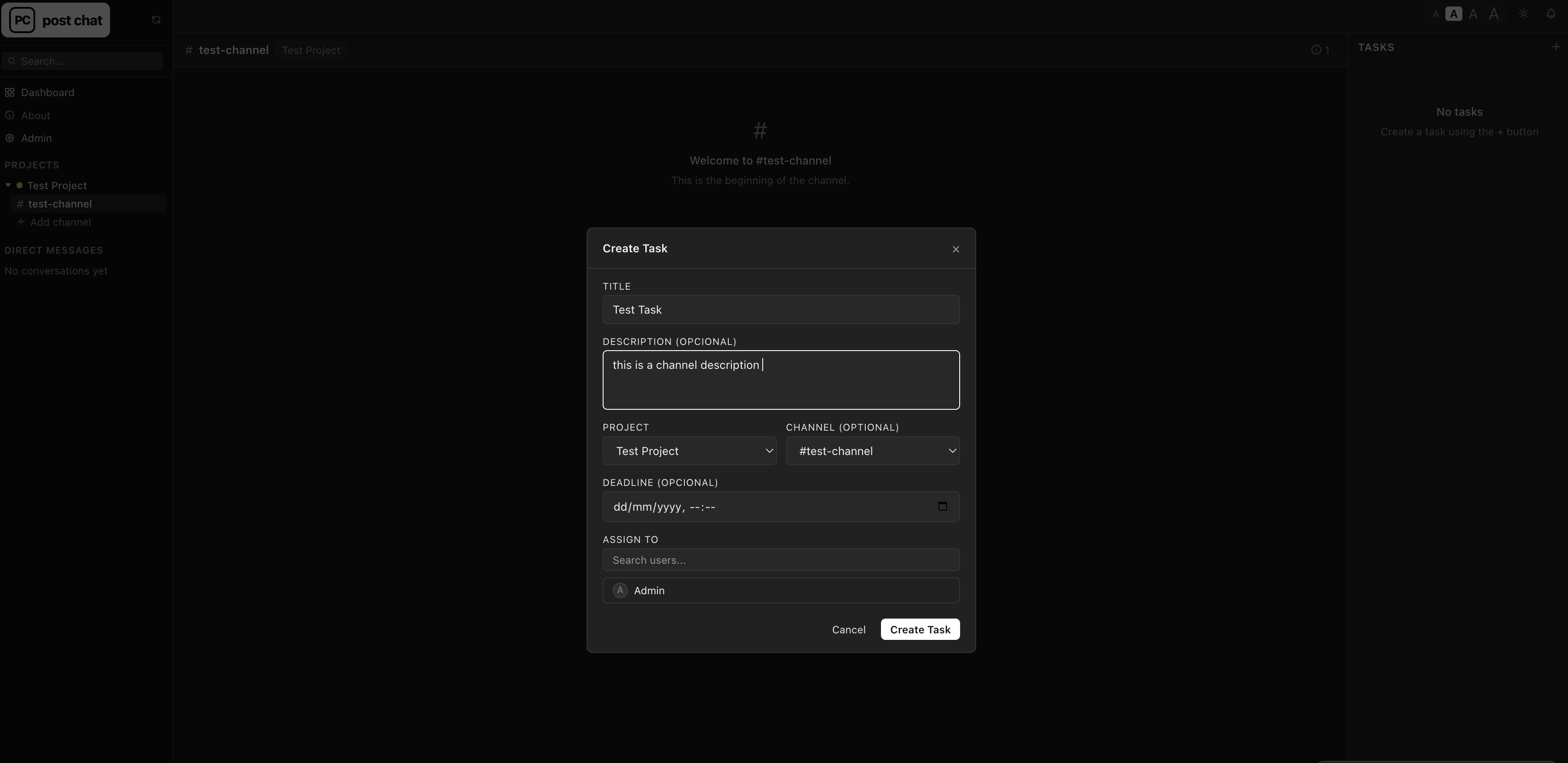
- Task management — create tasks, assign them, set deadlines, add comments, track Open / In Progress / Completed.
- File sharing — upload and share images, videos, PDFs, documents and other production files directly in conversations.
- File preview — preview supported images and videos inline, or open documents and PDFs in a new tab.
- Replies and mentions — reply to specific messages, mention individual users or the whole team.
- Pinned messages — keep important information easy to find inside each channel.
- Notifications — unread-message indicators, browser notifications and optional push notifications.
- User and permission management — admins manage users, organizations, projects, channels, invitations and access.
- Manual invitation links — secure invitation links to share directly with new collaborators.
- Responsive interface — desktop, laptop, tablet and phone.
- Installable web app — supported browsers can install Post Chat as a Progressive Web App.
- Dark and light modes, and adjustable text size.
- Self-hosted PostgreSQL database — accounts, projects, messages and tasks stay in your own database, with persistent storage across updates.
- Optional Cloudflare Tunnel access — publish Post Chat on your own domain without opening router ports.
How it works
One computer acts as the Post Chat server and stores the application, PostgreSQL database and uploaded files. Other users connect through a web browser on Mac or Windows, a phone or tablet, an installed Progressive Web App, a private local-network address, or an optional public HTTPS address configured through Cloudflare Tunnel. Only the server computer needs Docker and PostgreSQL — client devices just need a modern browser.
Privacy and control
Post Chat is self-hosted. Your conversations, projects, tasks and uploaded files remain on infrastructure controlled by you. No Post Chat account or external subscription is required — external services are only needed if you choose features like Cloudflare Tunnel for public internet access.
The server administrator is responsible for keeping the server and Docker installation updated, protecting the private configuration file, creating regular database and upload backups, managing user access, protecting the Cloudflare Tunnel token, and configuring HTTPS and the public domain.
Technology
Next.js, React, Socket.IO, PostgreSQL, Prisma, Tailwind CSS, Docker Compose, and an optional Cloudflare Tunnel.
Requirements
- A Mac or Windows computer to host the app, plus Docker Desktop installed and running.
- For Windows: the supported Windows and WSL 2 requirements for Docker Desktop, using Linux containers.
- Free disk space for application images, the database and uploaded files, and an internet connection for the first install.
- Optional: your own Cloudflare account and a domain you control, if you want to give your team access from outside your network.
Installation
- Download and extract the ZIP. It contains a
PostChatfolder with the source code and installation scripts. - Install Docker Desktop, open it, and wait until its engine is running. Node.js and PostgreSQL are not needed separately.
- Move the extracted
PostChatfolder to a permanent location:~/PostChaton Mac, orC:\PostChaton Windows. Make surecompose.yamlsits directly inside that folder, and avoid network shares or cloud-synced folders. - Run the installer.
Mac — open Terminal and run:
cd "$HOME/PostChat"
bash Install-Mac.commandWindows — open
C:\PostChatand double-clickInstall-Windows.bat, or from Command Prompt:cd /d C:\PostChat
Install-Windows.bat
The installer creates .env with a unique database password, installs dependencies inside Docker, builds the app, sets up PostgreSQL and starts PostChat in the background. The first run can take a few minutes — wait for it to finish, and don't copy .env.example over the generated .env.
First sign-in
Open http://localhost:3001 on the computer running PostChat.
| Field | Default value |
|---|---|
| Email / username | admin@postchat.local |
| Password | admin123 |
Open Profile, change the default password immediately, then sign out and back in to confirm it works. These defaults only apply to an installation with no existing administrator — re-running the installer won't reset a password you've already changed.
Testing it locally
- Create a project in Admin → Projects and choose its color.
- Create a channel and send a test message.
- Create a task and move it between Open, In Progress and Completed.
- Register a second test account in a private/incognito window, approve it in Admin, and add it to a project or channel.
- Exchange channel and direct messages between the two accounts, check unread badges, and upload/download a small test file (limit: 25 MB per file).
- Restart with
docker compose restart appand confirm your data is still there.
At this stage PostChat is only accessible on the host computer. Outgoing email and push notifications, and external access, are optional and covered below.
Keeping it running
Once installed, you can close the terminal — the app and database keep running in the background. A few things worth setting up:
- Enable Start Docker Desktop when you sign in in Docker Desktop's settings, on both Mac and Windows.
- Mac: System Settings → Energy → enable "Prevent automatic sleeping when the display is off." On a laptop, keep it plugged in and avoid closing the lid unless you've confirmed it stays awake.
- Windows: Settings → System → Power & battery → set sleep while plugged in to Never, and check laptop lid/hibernation settings.
After a reboot, you'll need to sign back into the computer for Docker Desktop to start again — there's no unattended recovery before login. For an always-on setup, a dedicated Linux host or VM running Docker Engine as a system service is the more reliable option.
Optional: external access via Cloudflare
This uses your own Cloudflare account and a domain you already control there.
- In the Cloudflare dashboard, open Networking → Tunnels (or Cloudflare One → Networks / Connectors) and create a Cloudflared tunnel, e.g. named
postchat. - Select the Docker connector, and copy only the token shown after
--token. This package runs its own connector service — don't separately run Cloudflare's example Docker command. - Add a Published application route (or "Public Hostname") with: Subdomain
chat(or your choice), your domain, empty path, service type HTTP, service URLapp:3001. If there's only one URL field, usehttp://app:3001— the tunnel runs in its own container, so it'sapp:3001, notlocalhost:3001. - First confirm you've changed the default
admin123password. Then open.envin a plain-text editor and set:NEXT_PUBLIC_APP_URL=https://chat.yourdomain.comLeave
CLOUDFLARE_TUNNEL_TOKEN=YOUR_OWN_TUNNEL_TOKENPOSTGRES_PASSWORDunchanged. - Run the enable script — Mac:
cd "$HOME/PostChat"Windows: double-click
bash Enable-Cloudflare-Mac.commandEnable-Cloudflare-Windows.bat.
This rebuilds the app for HTTPS and starts the tunnel — no router port forwarding needed. Test from your phone on mobile data (Wi-Fi off) before relying on it. For a private team, Cloudflare Access can restrict the address to approved identities.
Daily operation & backups
| Action | Command |
|---|---|
| Start local services | docker compose up -d |
| Check status | docker compose ps |
| View app logs | docker compose logs --tail=100 app |
| Restart the app | docker compose restart app |
| Start with Cloudflare | docker compose -f compose.yaml -f compose.cloudflare.yaml up -d |
| Stop public access only | docker compose -f compose.yaml -f compose.cloudflare.yaml stop tunnel |
| Stop everything (keeps data) | docker compose down |
Back up the database, uploaded files and .env regularly — Docker volumes are persistent storage, not backups. Keep copies on separate storage and test that a restore actually works. When updating, keep .env and the data volumes, and never regenerate the database password for an existing database.
Troubleshooting
- P1000 / database authentication failed — the
.envdatabase password doesn't match the existing data volume. Restore the matching.env, or use the reset procedure in the full install guide if you want to start clean. - Cloudflare 502 — confirm the app is running and the route points to
http://app:3001. - Port 3001 already in use — stop the conflicting service first.
- Default login doesn't work — the defaults only apply when there's no administrator yet; an existing password survives reinstalling the source files.
- Grey projects after an update — use the color control beside the project name in Admin → Projects.
Contact and responsibility
PostChat's source code is shared by João Faria at joaofariapost.com. Each user is responsible for their own installation, security, backups, data and use of the software — it's provided as is, without guarantees of availability or support.
Questions or feedback? hello@joaofariapost.com